
LinkedIn Boolean search: operators, tier limits, and copy-paste strings for 2026
Most recruiters know AND, OR, and NOT, then hit a wall they cannot see: LinkedIn quietly limits how many of those operators a free search will accept.
This guide covers the five Boolean operators LinkedIn actually supports, where Boolean works and where it gets capped across free accounts, Sales Navigator, and Recruiter, and copy-paste strings for the plain search bar. It also shows what to do when native search comes up short.
If your string works great for a colleague on Recruiter but behaves differently for you on a free account, the account tier is often the reason. Let us make that visible.
Key takeaways
The hiring playbook, in your inbox
One email a week - benchmarks, AI screening tactics, and short interview templates from the 100Hires team. No product pitches.
- LinkedIn supports only five operators: AND, OR, NOT (all uppercase), quotation marks, and parentheses. Wildcards and brackets do nothing.
- Free search limits the number of operators per query. Sales Navigator allows up to 15. Recruiter has no limit.
- In the free search bar your string is matched against the whole profile. Sales Navigator and Recruiter let you aim it at specific fields.
- Copy-paste strings are below, grouped by what each one does.
- When native search is capped or noisy, the same logic runs on Google, and a tool like 100Hires handles the capture-and-contact work after.
The five Boolean operators LinkedIn actually supports
LinkedIn's real operator list is short. Learn these five and you can build almost any search.
| Operator | What it does | Example | Note |
|---|---|---|---|
| AND | Both terms must appear | recruiter AND SaaS |
Uppercase |
| OR | Either term counts | "account executive" OR "sales executive" |
Uppercase. Group the list in parentheses |
| NOT | Excludes a term | developer NOT junior |
Uppercase. Use it instead of a minus sign |
| " " | Matches an exact phrase | "product manager" |
Straight quotes only |
| ( ) | Groups the logic | ("vp sales" OR "head of sales") AND SaaS |
The only grouping symbol LinkedIn reads |
Two rules make or break these. First, AND, OR, and NOT have to be uppercase. Type them lowercase and LinkedIn reads them as ordinary words, not logic.
Second, LinkedIn resolves quotes first, then parentheses, then NOT, then AND, then OR. When a search behaves oddly, wrap your OR list in parentheses and it usually snaps back into line.
What LinkedIn ignores
Plenty of older cheat sheets teach syntax that is not part of LinkedIn's supported operator set. Skip these:
-
Wildcards. There is no
*, somanag*will not catch manager, managing, and management. Spell the variants out with OR. -
Brackets and braces. LinkedIn treats
{ },[ ], and< >as plain characters, not ranges. - Plus and minus signs. They may look like they work, but LinkedIn does not officially support them. Use the word NOT to exclude.
- Curly quotes. Smart quotes pasted from a doc silently break an exact-phrase search. Only straight quotes work.
-
Field operators. Syntax like
title:andcompany:shows up in older guides but is not part of LinkedIn's documented operators. To scope to a field, use the dedicated filter boxes in Sales Navigator or Recruiter instead.
Which of these operators you can lean on depends on your account. That is where most confusion starts.
Where Boolean works on LinkedIn, and where it quietly caps you
The same string behaves differently on a free account, on Sales Navigator, and in Recruiter. The differences come down to two things: how many operators you can use, and which fields your Boolean search can target.
| Surface | Operator limit | Boolean applies to |
|---|---|---|
| Free and Basic | Limited number per query | The keyword bar, matched against the whole profile |
| Sales Navigator | Up to 15 operators | Keyword, plus separate Title and Company fields |
| Recruiter and Recruiter Lite | No limit | Keyword field, plus seven filters with Can have / Must have / Doesn't have |
Free and Basic LinkedIn search
Every account has the plain search bar, and Boolean works there. The catch is that LinkedIn limits the number of operators a single free query accepts, to keep the free engine fast and to deter profile scraping.
Your string also runs against the entire public profile, not one field. So generic terms match a person's headline, past roles, skills, and even recommendations, which is where a lot of the noise comes from.
Free accounts are also subject to a commercial use limit on search, which throttles heavy searching. The practical move: keep free-account strings short and front-load the two or three terms you cannot compromise on.
Sales Navigator
Sales Navigator allows up to 15 Boolean operators in a single query. More useful than the count is that you can point a Boolean string at a specific field.
Put ("VP sales" OR "head of sales") in the Title field and it searches the title instead of the whole profile, which cuts false positives fast. The keyword, Title, and Company fields each take Boolean separately.
One honest limit: Sales Navigator is built for sellers, so its filters lean toward company and seniority signals rather than a recruiting workflow. It gives you field precision without a full Recruiter seat, but it is not a hiring system.
Recruiter and Recruiter Lite
Recruiter and Recruiter Lite have no limit on how many Boolean operators you can use, because they are built for heavy searching.
They also bake Boolean into the interface. Seven filters are treated as Boolean, including Job titles, Companies, Skills, Schools, and Industries. Each has a dropdown to set Can have (OR), Must have (AND), or Doesn't have (NOT).
For free-text terms, the Keyword field still takes typed Boolean.
So a query like accountant AND finance NOT (manager OR executive) can be built either by typing it into the Keyword field or by setting values in those filters.
It is the most direct way to use Boolean on LinkedIn, and it sits behind a Recruiter subscription. That is exactly why people on the free search bar lean on short strings and the Google workaround further down.
The same string on three accounts
Take one search: ("VP sales" OR "head of sales") AND SaaS NOT intern. Here is how you would actually run it on each tier.
- Free account. It goes in the single search bar and runs against every part of each profile. Keep the string short, because a long one can run past the free operator cap.
- Sales Navigator. Drop the two titles into the Title field and put SaaS in Keywords, so the seniority terms search the title rather than the whole profile.
- Recruiter. Add both titles to the Job titles filter set to Can have and set intern to Doesn't have, then type SaaS in the Keyword field. You mix filter dropdowns with typed Boolean instead of cramming it all into one box.
Same intent, three different mechanics. Knowing which one you are on stops you blaming the string when the account is the real variable.
Copy-paste LinkedIn Boolean search strings
Paste any of these into the LinkedIn search bar, then swap the quoted terms for your role. The point is the pattern, not the exact string, so once you see how each block works you can build your own in a minute.
Title synonyms. People give the same job different names, so cover the variants:
("software engineer" OR "backend developer" OR "backend engineer")Move up the seniority ladder. Catch leadership variants of a function:
("VP" OR "vice president" OR "head of" OR "director") AND salesScreen out juniors. NOT trims the noise at the bottom:
"data analyst" NOT (intern OR junior OR trainee)Skills as OR groups. No wildcard exists, so list the real terms candidates write:
("registered nurse" OR RN) AND ("ICU" OR "critical care")Target a company mention. In the free search bar this matches a current role, a past role, or any other profile text, so read the result before you trust it:
"product manager" AND (Stripe OR Adyen OR "Checkout.com")Filter out other recruiters. Handy when you keep hitting agency profiles:
("account executive" OR "sales executive") NOT (recruiter OR "talent acquisition")All of it stacked. A full string combining title, skill, and exclusions:
("marketing manager" OR "growth marketer") AND ("SEO" OR "demand generation") NOT (intern OR agency)Long strings are painful to edit in that tiny box, so write them somewhere roomier first. Our free boolean search string generator builds one from a job title if you would rather start from a draft.
Why your LinkedIn Boolean search isn't working
Most failed searches trace back to a short list of causes. Some are yours to fix, some are just how LinkedIn behaves.
Fixable mistakes
- Lowercase operators. and, or, and not read as plain words. Capitalize AND, OR, NOT.
- Curly quotes. A phrase pasted from Google Docs or Word often carries smart quotes that break the match. Retype the straight quotes.
- Missing parentheses. Without them, an OR list scrambles your logic and pulls in people you never meant to see.
-
Expecting a wildcard.
manag*matches nothing. Spell out manager, managing, and management with OR. - Leaning on stop words. Small words like in, with, and by get dropped, so they add nothing to a string.
- Over-excluding. A long stack of NOT terms can bury the exact people you want. Add exclusions one at a time and watch the count.
- Too many operators on free. A free query caps the number of operators, so a very long string can run past that limit.
Limits that aren't your fault
Some misses come from the data, not your syntax. People often leave old roles open on their profile, so a match can read as a current title that the person left years ago.
And because the free keyword bar searches the whole profile, a match can come from a recommendation, an old job, or a school blurb rather than the person's actual work. That produces false positives no operator can prevent.
Recruiters on r/recruiting also reported throughout 2025 that LinkedIn's own search felt less reliable after the platform leaned into AI-assisted search, with strings that used to work returning fewer results.
That is practitioner sentiment rather than a documented change, so treat it as a reason to verify results, not a rule.
When native Boolean hits its ceiling, run the same logic on Google
When the free operator cap gets in your way, or you want to reach people the native search is not surfacing, run the same Boolean logic against Google instead.
The site: operator points Google at the public LinkedIn profiles it has already indexed, which is what recruiters call x-ray search, and it works on a free account.
Because the search happens on Google, outside your LinkedIn session, it follows Google's rules rather than LinkedIn's. We keep the full copy-paste strings and a step-by-step method in a separate guide, so this section just points you to it.
See our companion guide to LinkedIn x-ray search for the strings and the method for building your own.
What to do with the profiles you find
A Boolean search shows you the right person. It does not hand you a way to reach them, since a public profile rarely lists an email. So you still open profiles one by one and go hunting for contact details.
Full disclosure: 100Hires is our product, and it has no Boolean search box of its own. The operators run inside LinkedIn. 100Hires comes in at the step after the search.
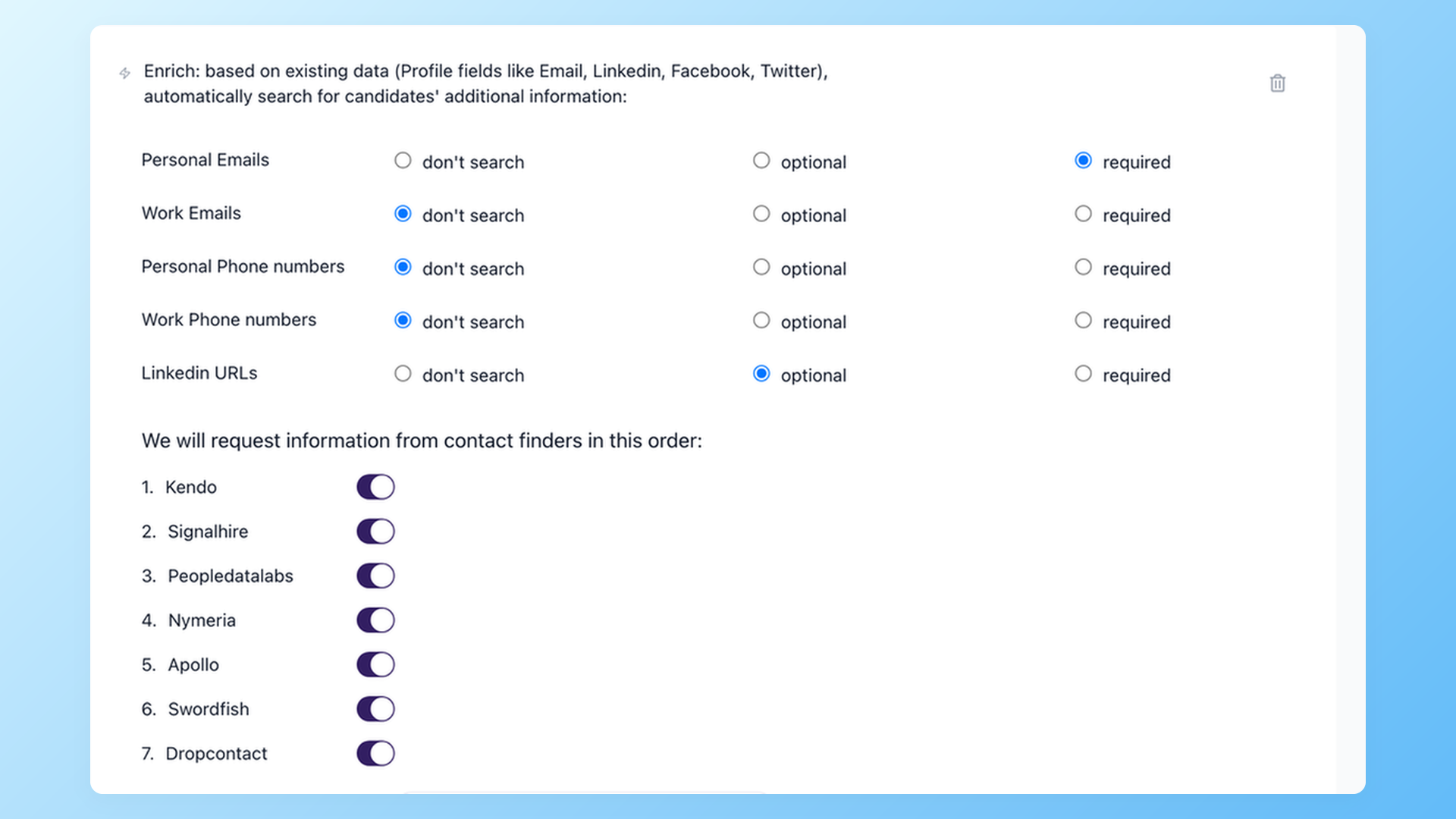
The 100Hires Chrome extension captures a candidate straight from the results into your ATS, and on the Pro plan ($399 per month billed annually, $499 month to month) it runs seven data providers in sequence to find and validate a personal email before you reach out.
You can keep the search fully manual if you prefer. The tool just removes the manual copy-pasting that comes after. Start a free 100Hires trial if you want to try capturing candidates from the results page.
Frequently asked questions
Can I do a Boolean search on LinkedIn?
Yes. The five operators (AND, OR, NOT, quotes, and parentheses) work in the free LinkedIn search bar. Two things to know: a free query limits how many operators it accepts, and your string is matched against the whole profile rather than one field. If you want to pull the people you find into an ATS, the 100Hires Chrome extension captures them straight from the results page.
What is an example of a LinkedIn Boolean search?
A simple one is ("product manager" OR "product owner") AND fintech NOT intern. It finds product people in fintech while dropping interns. If you would rather not build strings by hand, the free 100Hires boolean search string generator turns a job title into a ready string you can paste into LinkedIn.
Does LinkedIn job search support Boolean search?
Yes. The same uppercase AND, OR, and NOT operators from LinkedIn's Boolean rules also work in the keyword field of LinkedIn's job search, subject to the same free-account operator cap. That helps job seekers narrow roles and recruiters check where a title is being posted.
Why is my LinkedIn Boolean search not working?
The usual causes are lowercase operators, curly quotes pasted from a document, a missing set of parentheses, or too many operators on a free account. Fix those first, then simplify the string and search the words candidates actually write. If a clean string still returns nothing, remove the last term you added, since one over-restrictive block is usually the culprit.
Do I need LinkedIn Recruiter to use Boolean search?
No. Free LinkedIn and Sales Navigator both support Boolean. Recruiter mainly removes the operator cap and adds field filters with Can have, Must have, and Doesn't have controls. Once you have your list, 100Hires handles the capture and contact step, so a free search can still be the first step in an automated sourcing process.
Learn the strings, then let the software handle the repetitive work of saving profiles and finding contact details. Start your free 100Hires trial and put your next LinkedIn Boolean search to work.
Related 100Hires resources: Explore chrome extension for recruiters.
Try 100Hires for free
No credit card. 14-day trial. Forbes Advisor #1 ATS for SMBs.