
Migrate from ApplicantPro to 100Hires
Switching from ApplicantPro? Import supported data into 100Hires.
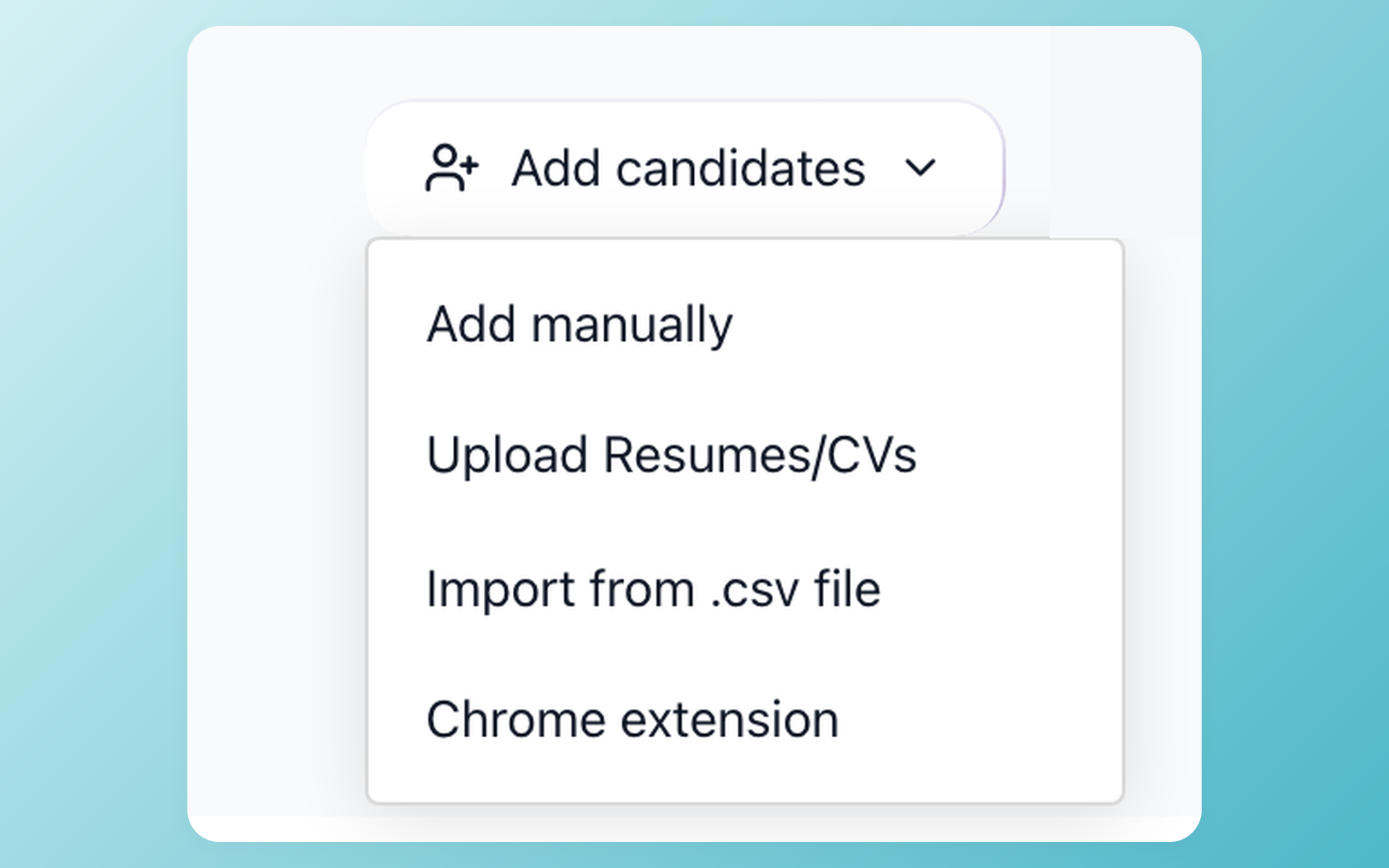
Self-service CSV candidate import is free on every plan. Annual Pro includes managed migration after a scope review; managed migration on other plans is custom-scoped based on volume and complexity.






100Hires is rated 4.9 on Capterra and 4.8 on G2. Ratings checked July 20, 2026.
Start the move with the ApplicantPro files your team can obtain
ApplicantPro and isolved are named only to identify the product discussed on this page.
ApplicantPro is now marketed as isolved Talent Acquisition; this page uses ApplicantPro for teams searching under the former name.
The reviewed ApplicantPro pages do not publish a fixed export schema. Before a cutover, confirm which files are available and which candidates, jobs, fields, notes, history, and attachments they contain.
| ApplicantPro source your team can obtain | 100Hires path | What to confirm before cutover |
|---|---|---|
| If your team can obtain a candidate CSV | Use the self-service CSV candidate importer | Map required fields, review import errors, and validate a sample before importing the full file |
| If your team can provide PDF or DOC resumes | Upload resumes in bulk so 100Hires can parse candidate details | Confirm profile fields and job assignment; resume parsing does not recreate unsupported notes or history |
| If your team can provide a larger package of files | Request a managed scope review | Agree on objects, fields, history, attachments, cutoff, volume, quality checks, and sign-off |
100Hires works from customer-provided files. We confirm scope and timing after review, so this is not a one-click transfer and may not recreate every type of source data.
What your team can use after supported records arrive
Importing records is only the first step. Once the candidate and job information is available, 100Hires helps recruiters move from review to outreach and scheduling.
| 100Hires feature | Source context needed | What the team can do after import |
|---|---|---|
| AI Score | Candidate resume or profile plus the destination job | Prioritize which imported profiles need recruiter review |
| AI Copilot | Imported candidate and job context | Ask a focused question before the next recruiter action |
| AI Email Composer and Nurture campaigns | Candidate contact details and destination stage | Set up follow-up after imported records are validated |
| Self-scheduling links | Candidate contact details and the recruiter calendar setup | Let candidates choose from available interview times |
After import, the new workspace can help recruiters review supported candidate records and answer questions about the information in them. Recruiters remain responsible for hiring decisions.
Prioritize the imported pipeline with AI Score
100Hires AI Score evaluates a candidate against criteria set for the destination role. The recruiter gets a configurable 0-100 total, a summary, and a score for each criterion instead of an unexplained ranking.
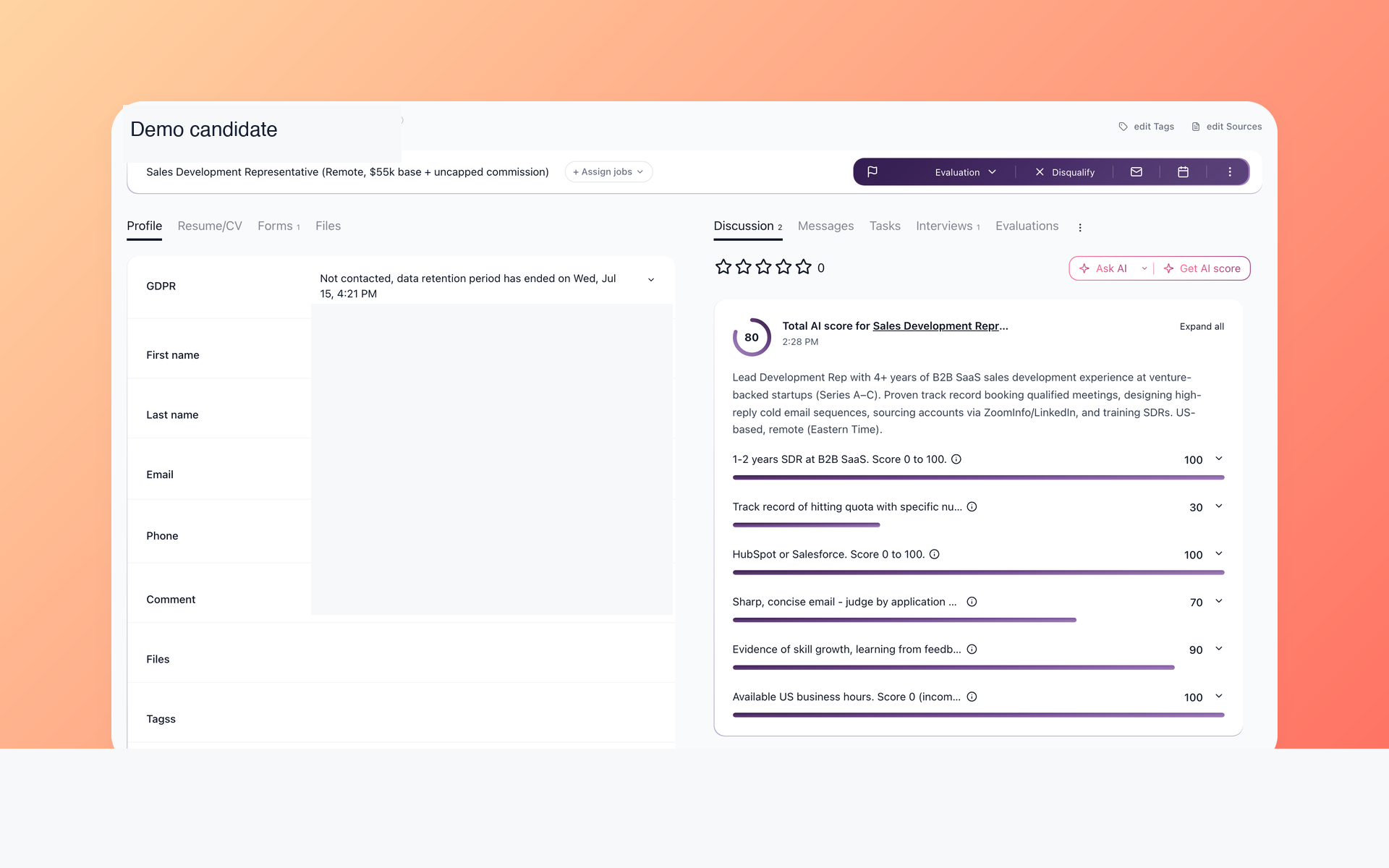
Review the reason behind each result
Open the candidate report after a sample import and compare the result with the role criteria before deciding whether the profile is ready for the next stage.
- 0-100 total
- Candidate summary
- Criterion breakdown
- Candidate report view
Learn how AI resume screening uses AI Score for candidate review after the required source data has been imported.
Find the useful candidate context with AI Copilot
AI Copilot can work with the resume, profile fields, job information, notes, emails, evaluations, and application answers available in the 100Hires record. Its answers are limited by the information included in the import.
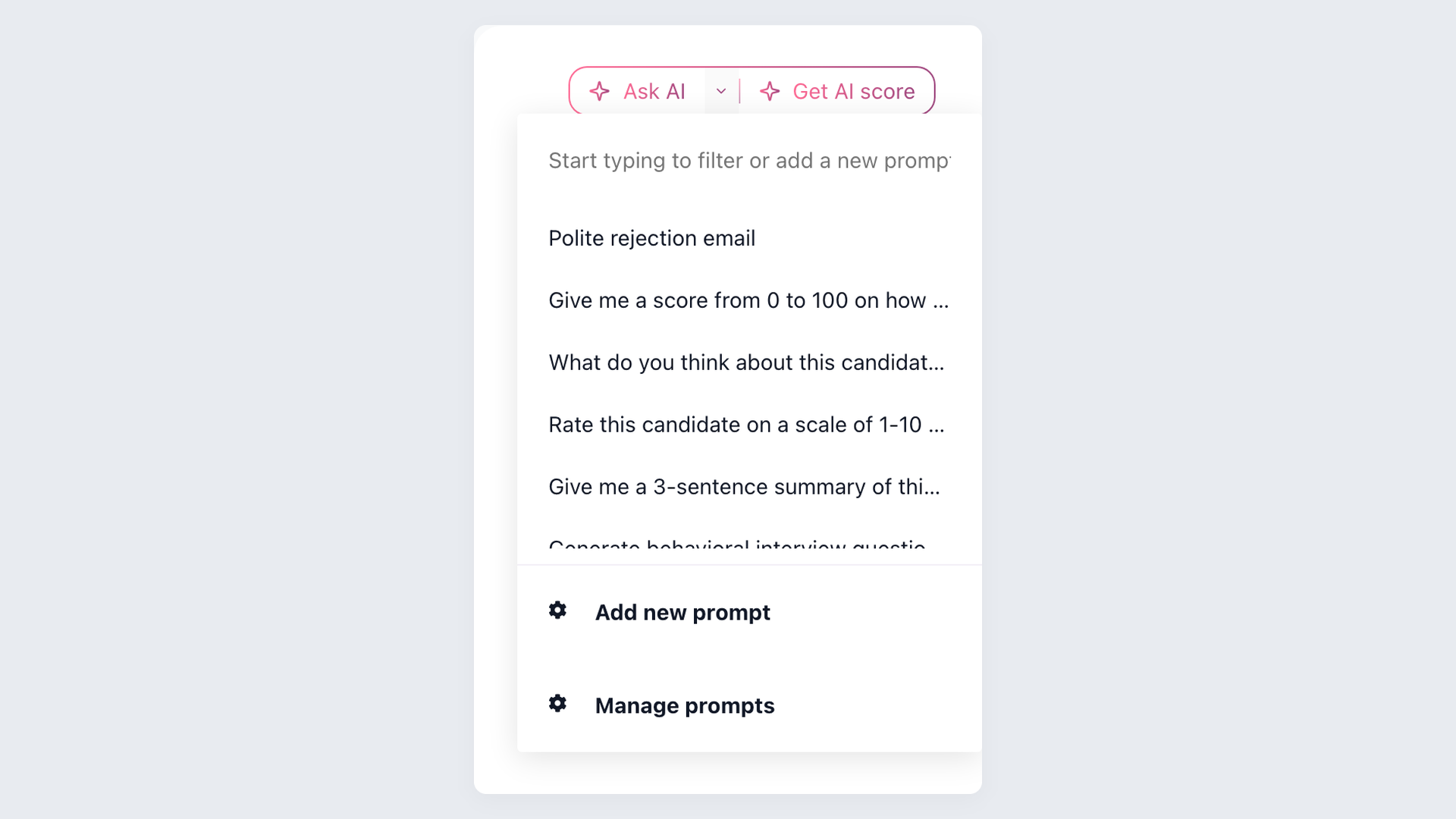
Ask a direct question about available candidate context
During sample validation, ask a question whose answer is known, then compare the response with the source record. This checks whether the imported information is usable before rollout.
- Prompt menu
- Candidate-record view
- Question input
- Recruiter response review
Learn how AI recruiter workflows use AI Copilot during screening and outreach. It supports recruiter review; it does not make the final hiring decision.
Rebuild follow-up in the new workspace
Moving records is useful when the team can act on them. In 100Hires, AI Email Composer can draft personalized messages, Nurture campaigns can schedule follow-up, and self-scheduling links can reduce calendar back-and-forth.
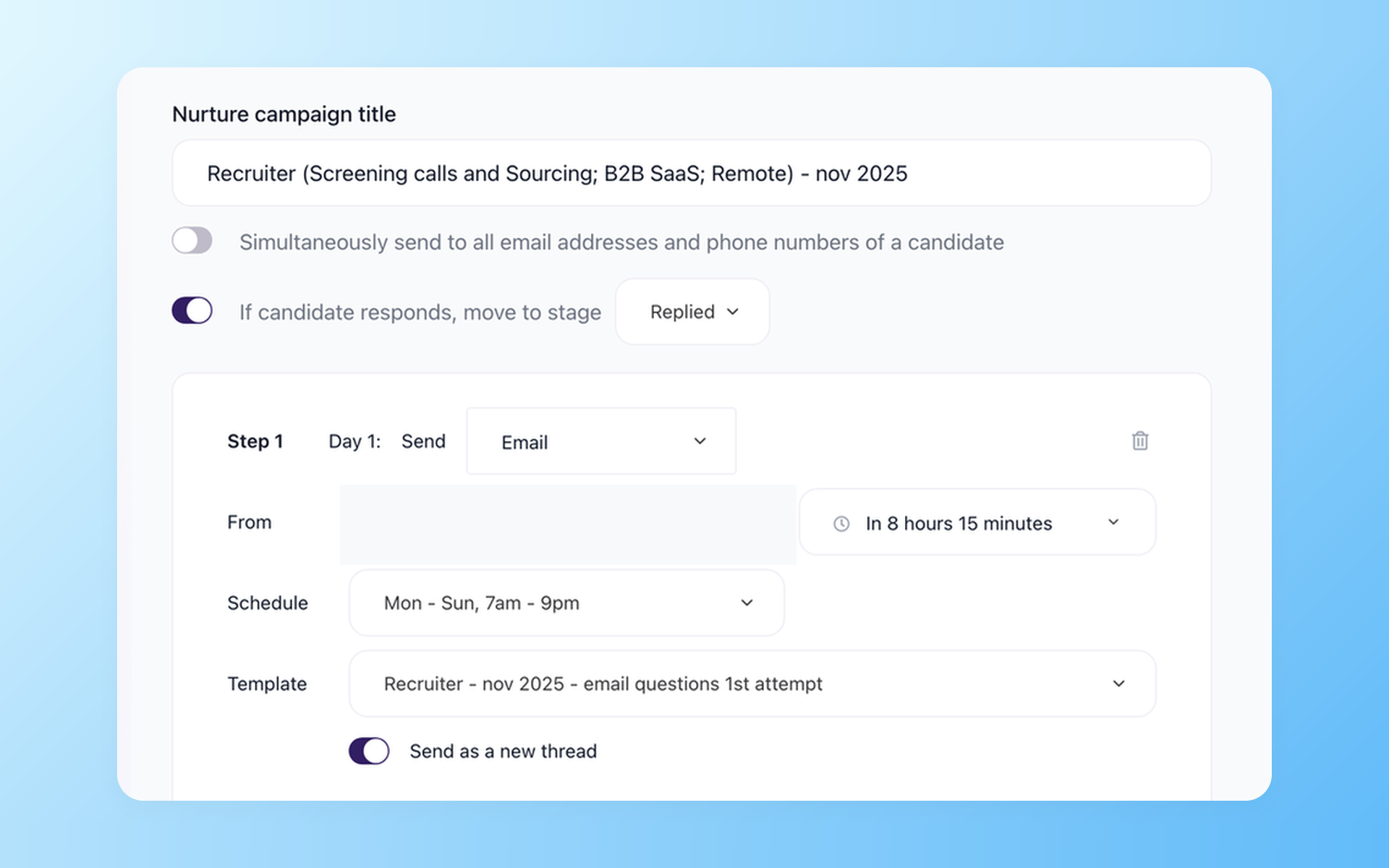
Turn the imported list into an active pipeline
After contact details and stages are validated, configure the first outreach sequence and review each message before using it with imported candidates.
- Timing controls
- Schedule settings
- Reply controls
- Campaign configuration
Learn how recruitment automation software supports outreach, stage actions, and scheduling after a supported ApplicantPro import.
When staying with ApplicantPro may be the better choice
Staying may be sensible when your current isolved Talent Acquisition workflow fits, the team is already trained, and the expected benefit of changing systems does not justify the work of exporting, validating, and rebuilding processes.
100Hires may be a better fit for teams that want a trial-first path and automation controlled by recruiters, and that are prepared to validate available source files before switching.
The hiring playbook, in your inbox
One email a week - benchmarks, AI screening tactics, and short interview templates from the 100Hires team. No product pitches.